Not receiving your verification code?

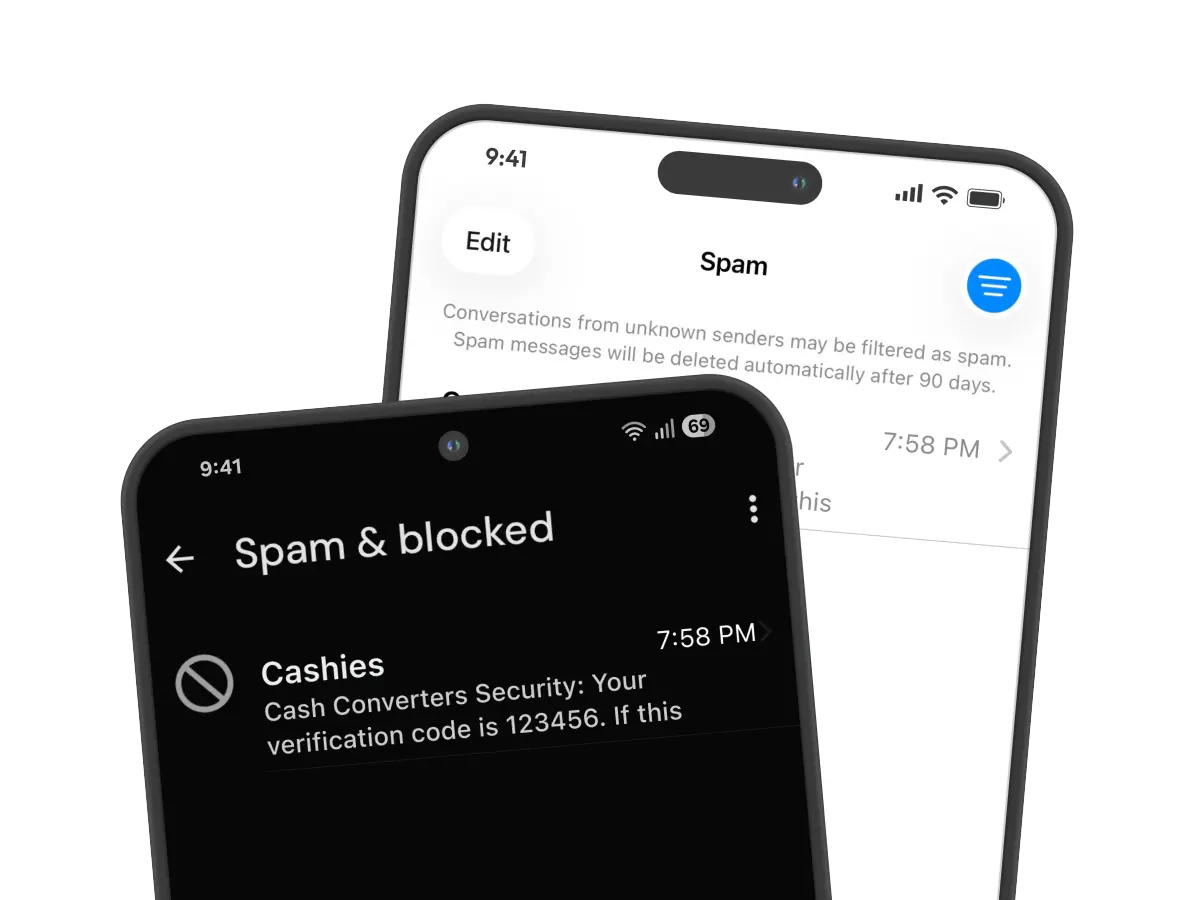
If you’re waiting for a verification code and it hasn’t appeared, it may have been delivered to your Spam, Blocked, or Unknown Senders folder instead of your main inbox.

Follow the steps for your device below to locate your message.

AndroidiPhone

.

Android

(Samsung & most Android devices)

.


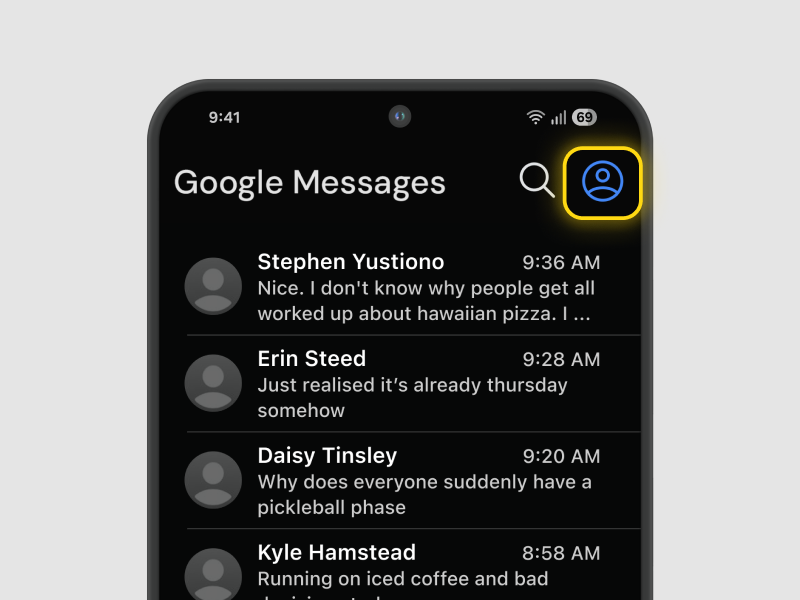
Open the Messages app and tap your profile / account icon

Step 1

Open the Messages app and tap your profile / account icon.
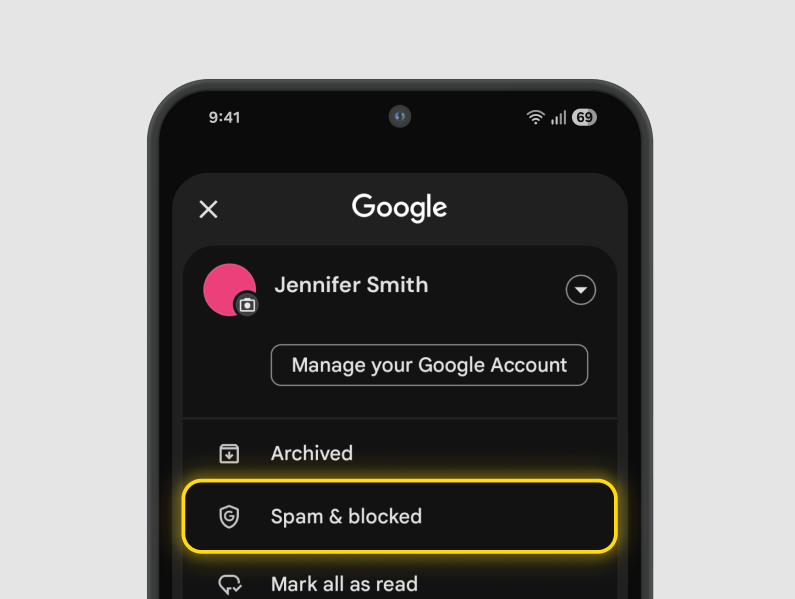
  

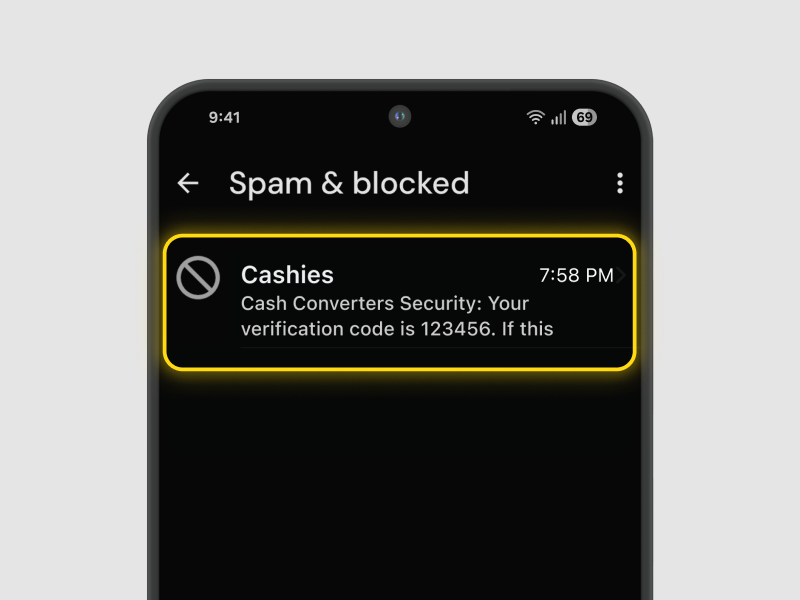
Tap Spam & blocked

Step 2

Tap Spam & blocked.


Find and tap on your verification message

Step 3

Find and tap on your verification message.
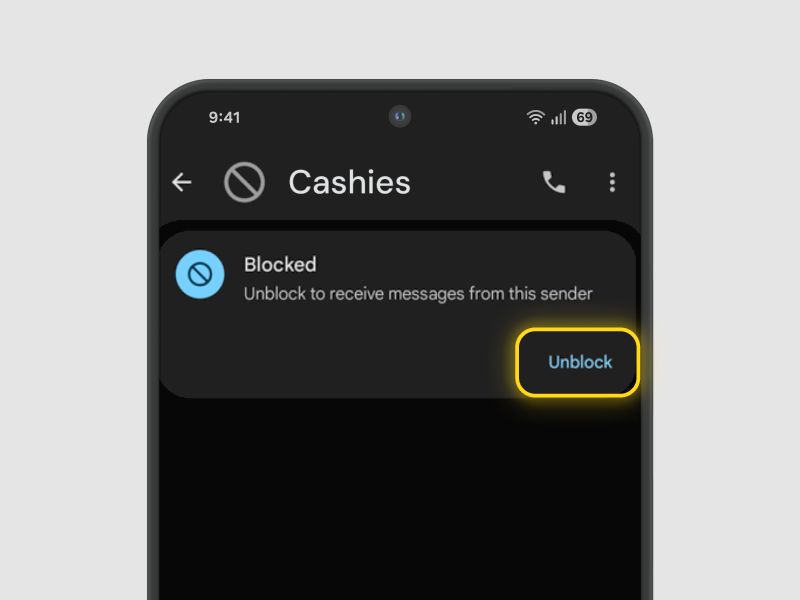
  

Tap Unblock

Step 4

Tap Unblock.

.

Tip: On some devices, this option may be located under the menu (three dots) instead.


.

iPhone

(Apple / iOS)

.


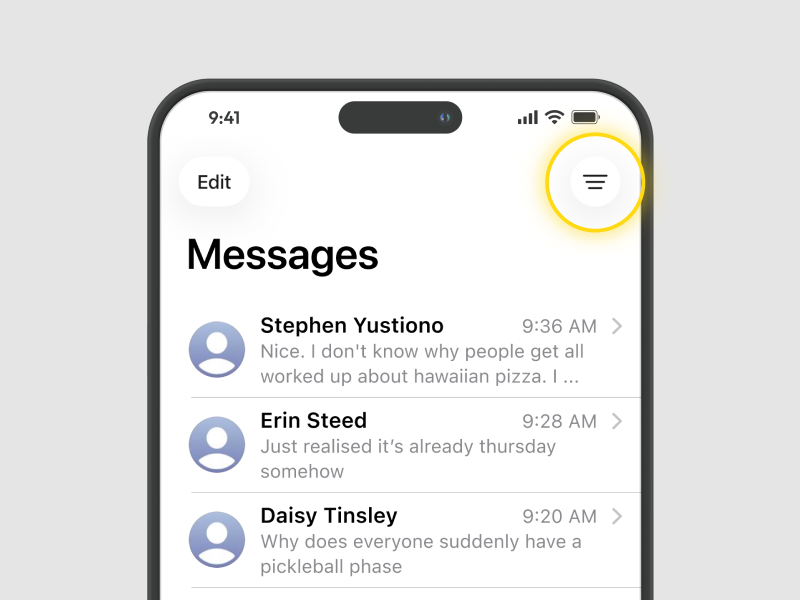
Open the Messages app and tap the filters icon

Step 1

Open the Messages app and tap the filters icon.
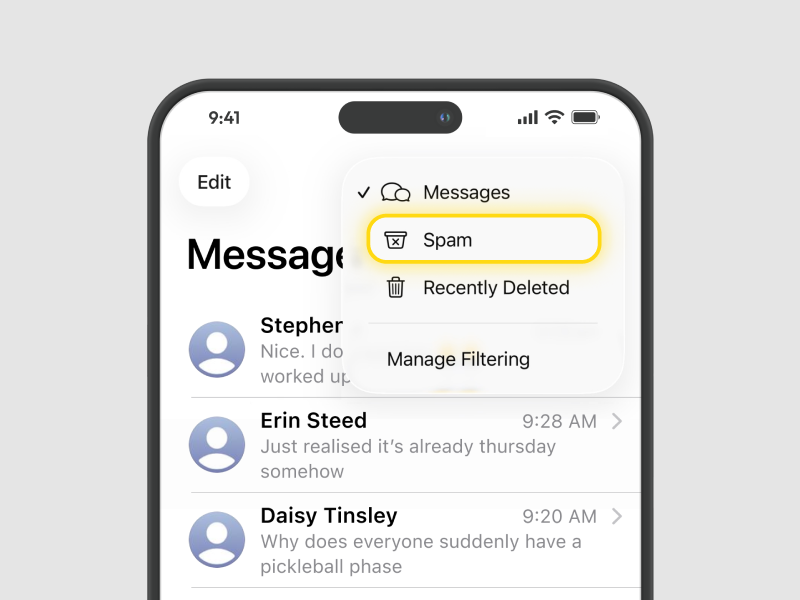
  

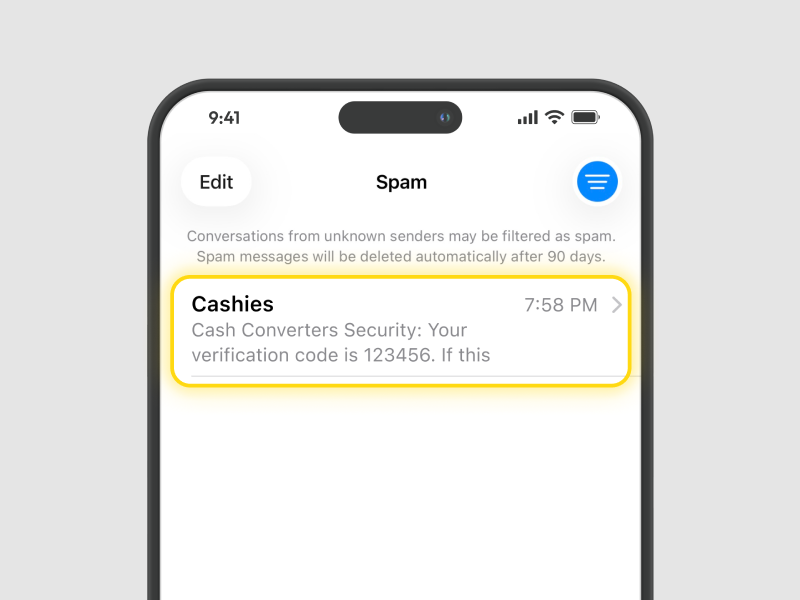
Tap Spam or Unknown Senders

Step 2

Tap Spam or Unknown Senders.


Find and tap on your verification message

Step 3

Find and tap on your verification message.
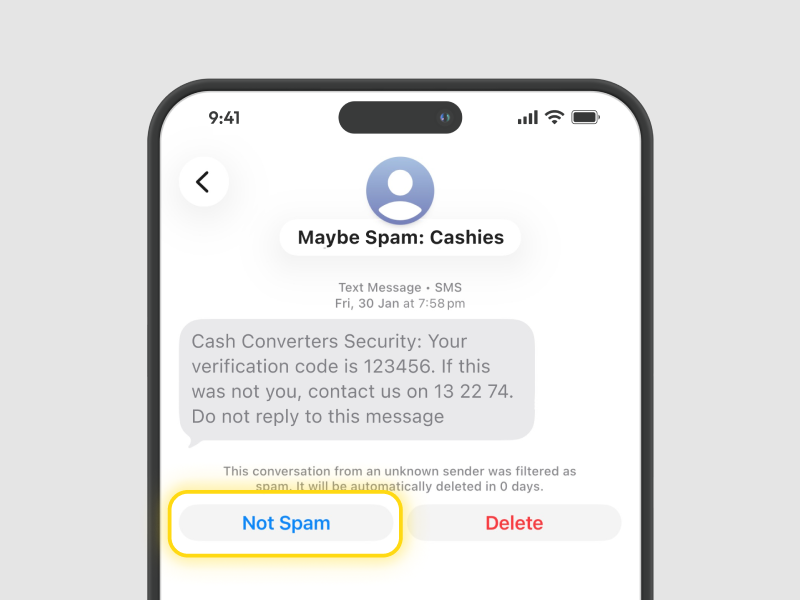
  

Tap Not Spam

Step 4

Tap Not Spam.

.

Tip: Messages from businesses or automated systems are often filtered into Spam or Unknown Senders automatically.

  

Still can’t find your code?

  • Double-check you entered the correct phone number
  • Wait a minute and request a new code
  • Ensure your phone has signal and can receive SMS messages

Further assistance

If you still cannot locate your verification code using the steps above, we recommend you complete your application at your local store, or else contact the store to see if they can help you complete your application over the phone.